
In today’s online world, how fast your website works is super important. It’s not just a cool thing to have; it’s really necessary. If you’re a blogger, run a business or dream of starting your own business, the speed of your WordPress site can be the key to whether you do well or not. There are different methods for speeding up WordPress sites.
In this comprehensive guide, We will see How To Speed Up WordPress sites
Imagine that you’re all set to buy something awesome from an online store. You’re excited, have your payment details ready, and you click the “Buy Now” button. But instead of smoothly moving to the checkout page, you’re stuck waiting for what feels like forever. The page is taking ages to load, and it’s like watching a slow-motion version of your shopping experience. Just like a movie with a slow-loading screen can be frustrating, a slow-loading e-commerce website can make your online shopping experience less enjoyable.
Why Is Website Speed Important?
Website speed is an indispensable factor influencing the user experience, search engine rankings, and overall business success. It shapes the initial impression users have upon landing on a site, impacting engagement and conversion rates directly. Rapidly loading pages not only encourage users to explore more but also retain their interest, nurturing loyalty and trust.
For Example:
A visitor lands on a website to shop for a specific product. If the site takes ages to load, it’s like entering a store where the shelves are disorganized and hard to navigate. Frustration sets in, and they might leave for a competitor’s site where finding what they need is swift and effortless. This scenario exemplifies how crucial speed is to retaining customers.
How Do I check The Speed Of WordPress Sites?
To check the speed of your WordPress site, you can use various online tools and services that analyze your website’s performance. Here are some popular tools you can use:
Google PageSpeed Insights:
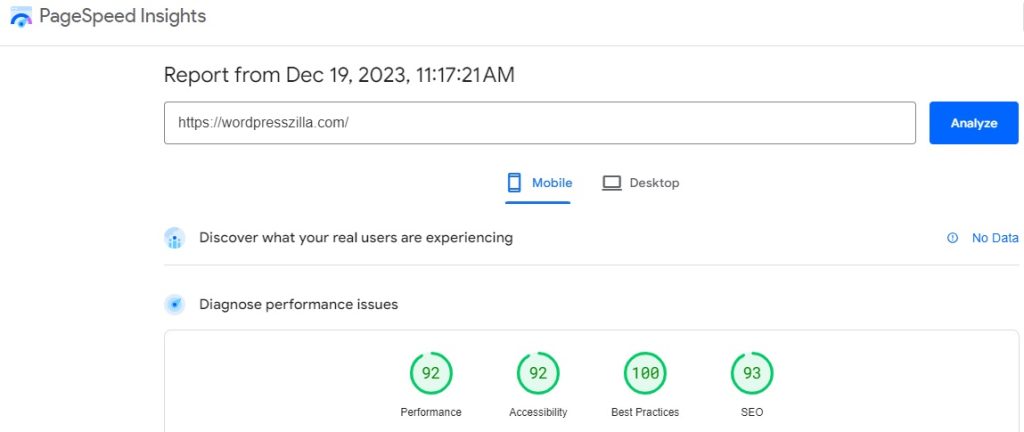
- GTmetrix:
- GTmetrix is a comprehensive tool that provides a performance report for your website. It includes information on page load time, total page size, and the number of requests. It also offers suggestions on how to improve your site’s performance.
- Pingdom Website Speed Test
- Pingdom’s tool allows you to test your website’s speed from different locations worldwide. It provides a performance grade, load time, and various other details. You can also view a waterfall breakdown of your site’s resources.
- WebPageTest:
- WebPageTest is an advanced tool that allows you to test your website’s speed from multiple locations using different browsers and connection speeds. It provides a detailed waterfall chart and performance grades.

When using these tools, pay attention to metrics such as:
- Page Load Time: The time it takes for your page to fully load.
- Total Page Size: The overall size of your web page, including images, scripts, and other resources.
- Number of Requests: The total number of requests made to load the page.
- Performance Score: A score assigned by the tool based on various performance metrics.
After running tests with these tools, you’ll receive recommendations on how to improve your WordPress site’s speed. Implementing the suggested changes can help enhance your website’s performance and provide a better user experience.
How To Speed Up WordPress Sites?
Here are a few basic things you should consider to speed up your WordPress site:
Optimize WordPress Themes
Use a lightweight theme
- Choose a lightweight and well-coded theme. Avoid themes with excessive features that you don’t need, as they can slow down your site. For ideas about fastest WordPress themes, you can follow this blog for selecting Themes for your WordPress site.
Customizing Theme for Better performance
To customize your theme for better performance, follow these steps:
- Minimize HTTP requests by reducing the number of external resources like CSS files, JavaScript files, and images.
- Optimize and compress your images to reduce their file size without compromising quality.
- Enable browser caching to store static files on visitors’ devices, reducing load time for subsequent visits.
- Minify and concatenate your CSS and JavaScript files to reduce their file size.
- Use a content delivery network (CDN) to cache and deliver your website’s static content from servers closer to your visitors.
- Remove any unnecessary plugins which your website doesn’t need.
- Implement lazy loading for images and videos to defer loading until they are visible on the screen.
- Enable Gzip compression on your server to reduce the size of transferred data.
- Optimize your website’s code and database queries to improve overall performance.
- Regularly monitor your website’s performance using tools like Google PageSpeed Insights or GTmetrix and make necessary optimizations based on their recommendations.
Enhancing WordPress Plugin
To enhance a WordPress plugin, you can follow these steps:
- Identify the specific functionality you want to improve.
- Review the plugin’s code and documentation to understand how it works.
- Create a child theme or a custom plugin to make your enhancements.
- Use hooks and filters to modify the plugin’s behavior without modifying its core files.
- Utilize action hooks to add new features or modify existing ones.
- Apply filters to modify the plugin’s output or data.
- Test your enhancements thoroughly to ensure they work as expected.
- Consider contributing your improvements back to the plugin’s developer or community.

Choose a Fast Hosting Provider
Choose a reliable and fast hosting provider that caters specifically to WordPress needs. Managed WordPress hosting services often come with server configurations optimized for the platform, ensuring top-notch performance. Providers like eHostigServer have earned a reputation for their commitment to speed, reliability, and tailored solutions for WordPress users.
Remember, choosing the right hosting provider and enhancing your WordPress plugins can greatly contribute to the overall performance and user experience of your website.
Use a Content Delivery Network (CDN)
A Content Delivery Network (CDN) is a geographically distributed network of servers strategically positioned to deliver web content more efficiently to users. It works by storing cached versions of a site’s static files (like images, stylesheets, JavaScript, and videos) across multiple servers around the world.
By leveraging a CDN like Cloudflare, Akamai, or Amazon CloudFront, your website can deliver content swiftly regardless of a visitor’s location, ensuring an optimal user experience and improving overall site performance.

Optimize images
Images often constitute a significant portion of a website’s data, impacting load times. Optimizing images involves reducing their file sizes without compromising quality. Here’s why it’s important and some tools to help:
Tools for Image Optimization:
- TinyPNG/TinyJPG: These online tools and plugins help reduce the size of PNG and JPEG images without significant quality loss.
- ImageOptim: A Mac application that optimizes images by removing unnecessary metadata and compressing image files.
- WP Smush (WordPress Plugin): This plugin automatically compresses images on WordPress sites without sacrificing quality.
- Kraken.io is an online service and plugin that optimizes images by compressing them without losing quality.

Optimizing images is a critical step in enhancing website speed. Utilizing various image optimization tools ensures that your website maintains visual appeal while significantly reducing file sizes, leading to faster load times and a better user experience.
Enable Browser Caching
Browser caching is a technique that stores a copy of static files from your website—like images, stylesheets, and scripts—in a user’s web browser. This stored data allows subsequent visits to your site to load faster, as the browser retrieves files from its cache rather than downloading them again from the server. This technique significantly reduces load times and enhances user experience.
Plugins for Browser Caching:
- W3 Total Cache: This comprehensive plugin for WordPress helps enable browser caching by setting cache-control headers, allowing for the efficient storage of static files in visitors’ browsers.
- WP Super Cache: Another popular plugin that generates static HTML files from your dynamic WordPress site, with options to set expiration times for different types of content, aiding in effective browser caching.
- LiteSpeed Cache: This is the one of the best plugins for WordPress to speed up WordPress sites, but this plugin may not work on all shared hosting server. You must have LiteSpeed Server installed on your server.

Minify CSS, JavaScript, and HTML
Minifying your CSS, JavaScript, and HTML files involves removing unnecessary characters (like white spaces, comments, and line breaks) to reduce file sizes and improve loading times. Plugins like Autoptimize can simplify this process for you.
Remember, before performing these changes, always back up your files. Minifying can sometimes cause unexpected issues, so it’s wise to test your website thoroughly after making these optimizations.
Check out this great tutorial from Ahrefs to Improve your WordPress site performance.
Optimize the WordPress Database
To optimize your WordPress database, you can follow these steps:
1) Install a plugin like WP-Optimize or WP Rocket to easily optimize your database.
2) Use the plugin’s features to clean up and optimize your database tables, removing unnecessary data and improving performance.
3) Regularly schedule automatic database optimization to keep your site running smoothly.

Remember to always back up your database before performing any optimizations or changes.
Reduce external HTTP requests
To reduce external HTTP requests, you can take the following steps:
1) Combine CSS and JavaScript files to minimize the number of requests made to external resources.
2) Minimize external resources, such as external fonts, scripts, or APIs, to reduce page load times
3) Utilize caching techniques to store static resources locally, reducing the need for frequent requests.
4) Optimize and compress images to reduce their file size and decrease the number of image requests.
Optimize server performance
- Configure your server for optimal performance. Consider using server-level caching, a performance-optimized web server (e.g., Nginx), and keeping server software and PHP versions up-to-date.
Regular Maintenance and Monitoring
Updating WordPress Themes and Plugins
Updating WordPress themes and plugins is important for maintaining a secure and functional website. By keeping them up to date, you can ensure that any WordPress security vulnerabilities are patched, performance is improved, and new features are added.
Monitoring site performance and making necessary changes
Regularly monitor your website’s performance using tools like Google PageSpeed Insights, GTmetrix, or Pingdom. These tools provide insights into specific improvements you can make.
Optimizing and compressing images can significantly reduce their file size and decrease the number of image requests on your website. This can lead to faster loading times and improved user experience.
In addition, optimizing your server performance is crucial for ensuring the smooth operation of your website. This can involve various measures such as caching, load balancing, and optimizing database queries.
Regular maintenance and monitoring are necessary to keep your website running smoothly. This includes tasks like checking for broken links, monitoring server uptime, and regularly backing up your website’s data.
FAQs
How to choose Web Hosting for WordPress?
Here are some factors to consider while selecting the Best web hosting for WordPress site to speed up WordPress Sites.
1. Consider managed WordPress hosting services that offer optimized server configurations for better performance.
2. Research and compare different hosting providers to find the one that best fits your needs and budget.
3. Read reviews and testimonials from other WordPress users to gauge the reputation and reliability of the hosting provider.
4. Consider factors such as uptime guarantees, customer support, scalability options, and additional features like automatic backups and security measures.
Why is WordPress running so slow?
There can be several reasons why WordPress is running slow. Here are some possible causes and you can consider to Speed up WordPress Sites.
1. Large image sizes: Optimize your images to reduce their file size and improve loading times.
2. Too many plugins: Deactivate or remove unnecessary plugins that may be slowing down your website.
3. Outdated WordPress version: Keep your WordPress installation up to date to benefit from performance improvements and bug fixes.
Inefficient code: Review your theme and plugins for any poorly coded elements that could be slowing down your site.
4. Server issues: Check if your hosting server is experiencing any problems or consider upgrading to a faster hosting provider.
5. Caching and optimization: Implement caching mechanisms and use optimization plugins to improve your site’s speed.
6. External scripts and HTTP requests: Minimize the number of external scripts and 7. HTTP requests to reduce loading times.
8. Database optimization: Optimize your WordPress database by removing unnecessary data and optimizing its structure.
9. Content delivery network (CDN): Utilize a CDN to distribute your website’s content across multiple servers and improve loading times.
Implementing these optimizations should help improve the speed of your WordPress website significantly.
Why use Custom Themes for WordPress Website?
Custom themes offer unique design and functionality tailored specifically to your WordPress website, enhancing its overall appearance and user experience. They allow you to have a distinctive brand identity, stand out from competitors, and meet the specific requirements of your website.
Custom themes provide greater flexibility and control over the design elements, layout, and features, ensuring a seamless integration with your content and business objectives.
What is core web vitals ?
Core Web Vitals are a set of specific factors that assess the user experience of a website. They include Largest Contentful Paint (LCP), First Input Delay (FID), and Cumulative Layout Shift (CLS). These metrics measure loading speed, interactivity, and visual stability respectively. Optimizing for these vitals can improve website performance and user satisfaction.
In Summary
In conclusion, speeding up Your WordPress website is not just a technical necessity; it’s a vital step in ensuring a positive user experience and online success. By implementing the strategies discussed earlier, such as optimizing images, enabling browser caching, and choosing a reliable hosting provider, you’re not only enhancing speed but also setting the stage for increased engagement and better search engine rankings. Remember, a faster website not only pleases your visitors but also contributes to the overall success of your online presence. Regular monitoring and ongoing optimizations will help you maintain a site that loads quickly and efficiently, keeping your audience happy and engaged